控制 Antigravity CLI 在会话期间修改文件或执行命令之前是否暂停询问。
开始之前
确保您满足以下先决条件:
- 安装 Antigravity CLI。
- 拥有一个活动的项目存储库,其中包含要编辑的源代码。
可用模式
Each execution mode makes a different tradeoff between conversational autonomy and developer oversight. The following table shows how Antigravity CLI handles file operations, command execution, and planning in each mode:
| 模式 | 行为 | 最适合 |
|---|---|---|
default | 在修改或创建文件前暂停以供交互式差异审查,并在运行终端命令前询问。 | 标准开发、审查敏感代码更改以及仔细重构。 |
auto (default where available) | 自动批准工作区文件编辑,默认在沙箱内运行终端命令,并自动评估沙箱外的命令,使安全、可逆的命令无需提示即可运行。在 macOS 和 Linux 的 v1.3.5+ 版本以及 Windows 的 v1.4.4+ 版本中可用;需要终端沙箱和个人账号。 | 自主工作流,安全的编辑和命令可不间断地继续执行,而不可逆的操作仍会提示确认。 |
accept-edits | Automatically approves file creations and edits inside your workspace, but still asks before running terminal commands. | 在受信任的代码上快速迭代,同时仍希望手动批准每条 Shell 命令。 |
| /plan | 在编写代码之前添加 /plan 指令前缀来分析和概述步骤。 | 探索不熟悉的架构或设计复杂的多步骤功能。 |
在会话期间切换执行模式
您可以在会话中切换执行模式,而无需中断活动任务或重新启动终端:
- Press Shift + Tab inside the prompt box to cycle through the active sequence:
default>accept-edits>auto>plan>default. Whereautomode isn’t available, cycling skips directly fromaccept-editstoplan. - Observe the mode indicator in the bottom-right status bar (
accept-edits,auto, orplan) and the prompt placeholder hint (such asAuto mode: edits & safe commands auto-approved (shift+tab to cycle)) to confirm your active mode.
在默认模式下审查修改
在 default 模式(request-review)下,Antigravity CLI 会在将任何文件写入磁盘前暂停,并渲染带有语法高亮的行内差异预览。自 v1.5.7 起,如果您的账号和平台支持 agy 模式,auto 会以 auto 模式启动,否则以 default 模式启动。若要在会话期间切换到 default 模式,请按 Shift + Tab 直至状态栏中的模式指示器清空,或在 default 中将 Agent Mode 设置为 /config。
The following example shows a pending file edit, with the diff and the prompt to accept or reject it:
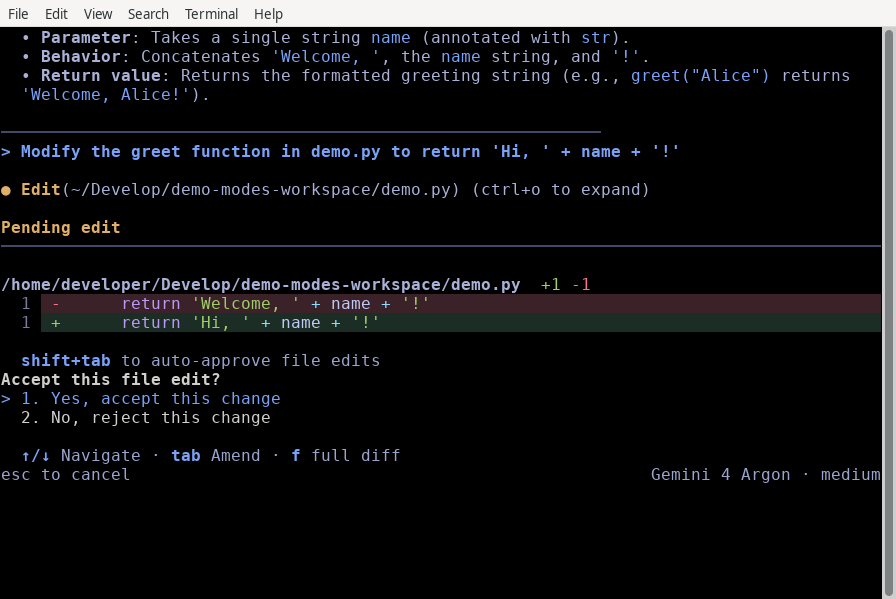
When Antigravity CLI asks Accept this file edit?, you can take any of the following actions:
- Press 1, or highlight Yes, accept this change and press Enter, to save the change to disk.
- Press 2, or highlight No, reject this change and press Enter, to keep the existing file unchanged.
- To reject the edit and tell the agent what to do differently, highlight No, reject this change, press Tab, type your instructions, and press Enter.
- Press f to open a full-screen, scrollable diff review with three context lines and hunk separators.
A pending file edit stays open until you accept or reject it. Pressing Esc doesn’t dismiss it.
新建文件预览
When Antigravity CLI creates a new file, the confirmation panel shows a Create file header, the file path (for example, src/utils/formatter.py), and an addition-only diff preview, followed by this prompt:
Allow creation of this file?
> 1. Yes, allow creation
  2. No, deny creation
If the file is outside your workspace, the panel also shows Reason: outside workspace and adds Yes, and always allow non-workspace access as the second choice.
The following example shows the Create file panel for a new file, src/utils/formatter.py:
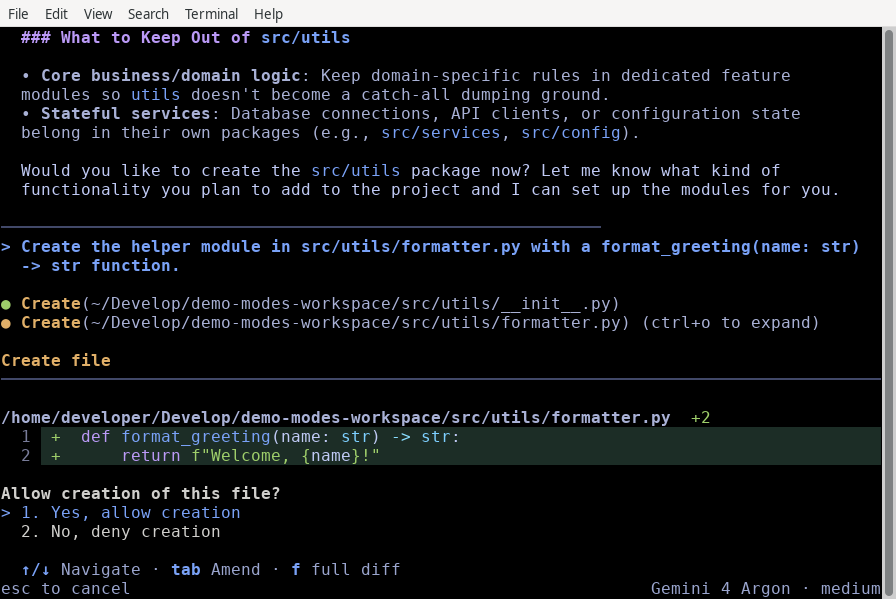
As with file edits, press f to open the full diff, or highlight No, deny creation and press Tab to tell the agent what to do differently. Pressing Esc denies the file creation.
使用自动接受编辑模式 (accept-edits) 自动批准修改
当您希望 Antigravity CLI 在文件系统中长时间、不间断地工作而无需因每次文件修改而暂停时,请选择 accept-edits 模式。
# Launch directly in accept-edits mode
agy --mode=accept-edits
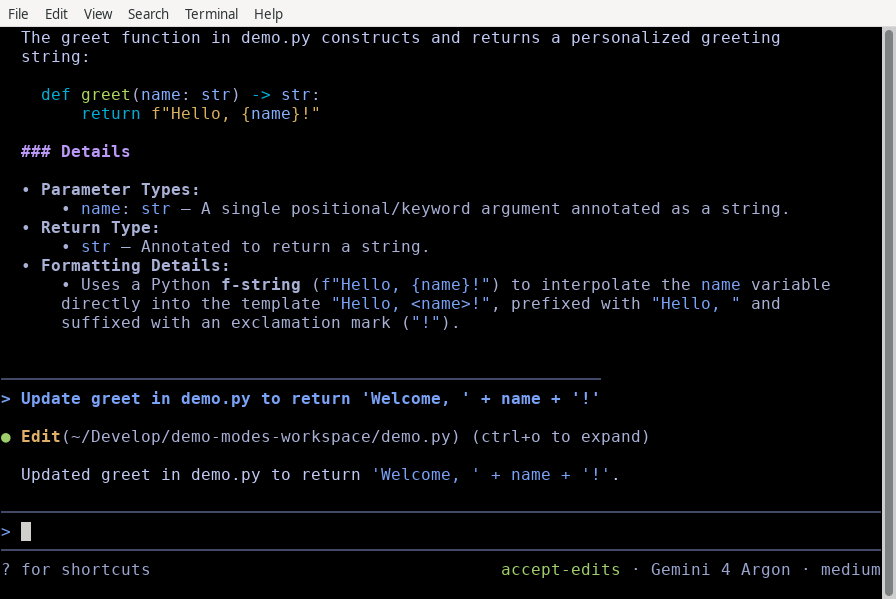
In this mode, all standard file creations, edits, and replacements inside your workspace run automatically. Subagents spawned during the session also inherit the accept-edits setting, preventing background file writes from queueing for manual approval.
When accept-edits mode is active, the bottom-right status bar shows accept-edits:
使用自动模式自动评估命令
auto 模式将 accept-edits 扩展到了终端命令执行,使日常开发任务无需手动确认提示即可继续执行。
# Launch directly in auto mode
agy --mode=auto
When auto mode is active:
- Workspace file edits: File creations and modifications inside your active workspace are approved automatically, including pending writes from background subagents.
- Sandboxed execution by default: Terminal commands run inside the native OS terminal sandbox (
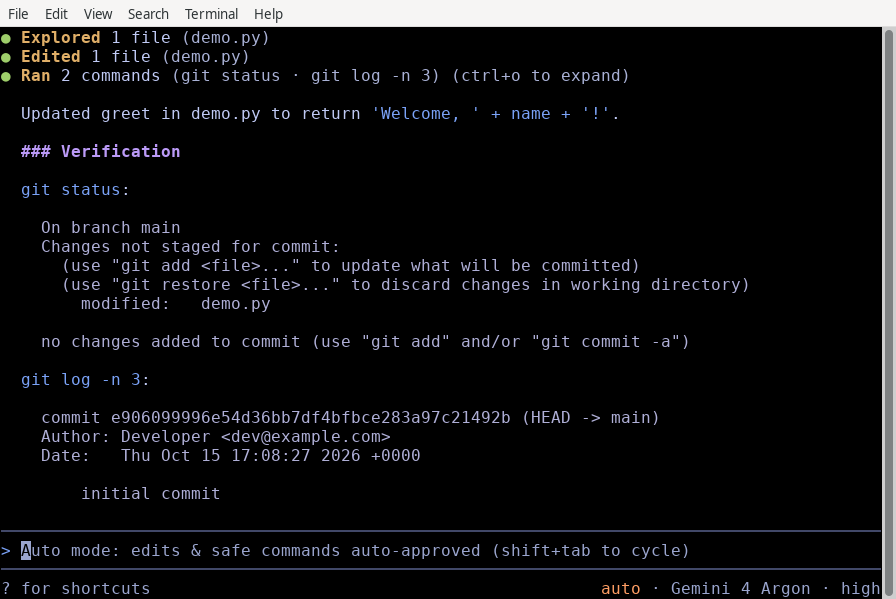
sandbox-execon macOS, kernel namespaces on Linux, process security environments on Windows) by default. - Automatic safety evaluation for commands outside the sandbox: Any command that needs to run outside the terminal sandbox is automatically evaluated before execution. Safe, reversible commands (such as workspace build, test, lint, and format commands) run automatically without asking for approval, while irreversible or high-risk actions still pause and prompt for your confirmation.
The bottom-right status bar shows auto, and the prompt input box shows Auto mode: edits & safe commands auto-approved (shift+tab to cycle):
要求与限制
auto mode requires the terminal sandbox:
- On Windows, the sandbox requires Windows 11 24H2 or later with the August 2026 update or later.
- Starting in
v1.4.4, if the sandbox isn’t available on your machine—for example, on Windows 10, earlier Windows 11 builds, or Linux hosts and some containers that block unprivileged user namespaces—automode isn’t offered.
In headless mode, if auto mode isn’t available, --mode=auto prints a warning and continues in default mode.
使用计划模式 (plan) 在编辑前分析任务
在执行复杂重构、多文件架构更改或不熟悉的代码库调查时,请使用 plan 模式。
# Launch directly in planning mode
agy --mode=plan
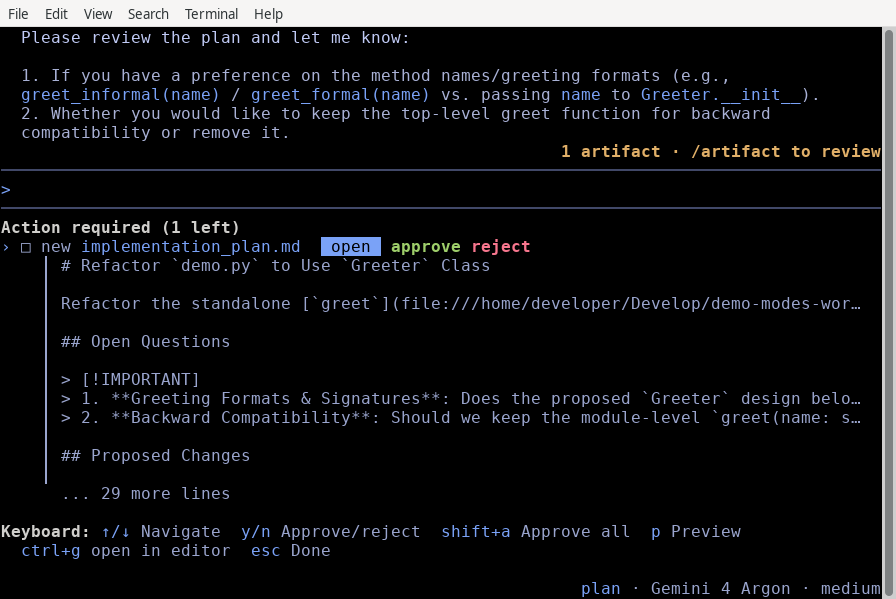
When plan mode is active through Shift + Tab cycling or the --mode flag, the CLI automatically prepends the /plan instruction prefix to your prompts. The agent investigates relevant files using read-only search and file-viewing tools and presents a structured execution outline for your approval before writing code.
The bottom-right status bar shows plan while the mode is active:
持久化保存或覆盖默认模式
您可以跨会话永久设置首选启动执行模式,或针对特定调用覆盖它。
使用交互式设置面板
To inspect or update your default mode mid-session:
-
Open the interactive settings panel:
/config -
Highlight Agent Mode with ↑/↓.
-
Press ←/→ to change it, or press Enter to open the list of modes, where the current mode is marked
(current):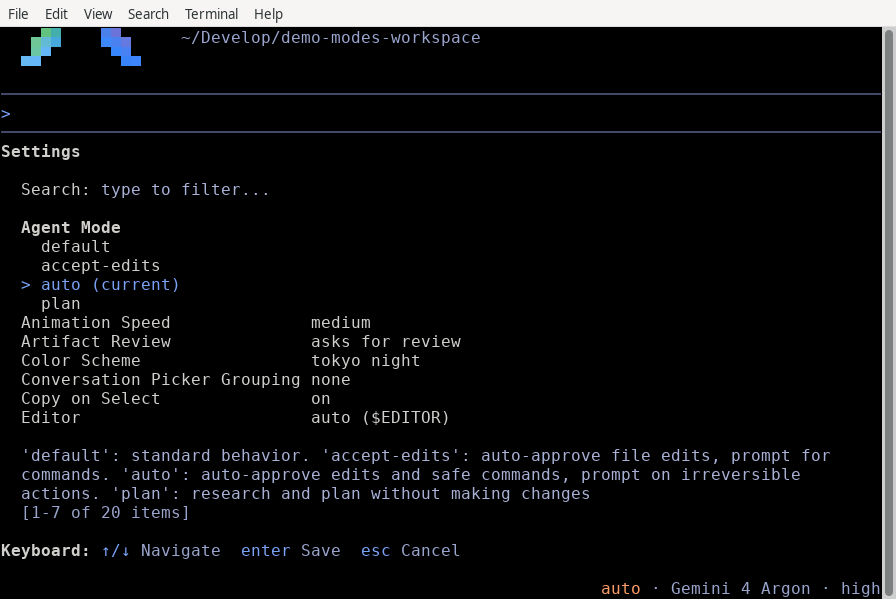
Highlight a mode and press Enter. Either way, the change is written to
settings.jsonand applies to your session immediately. -
Press Esc to close the panel.
在 settings.json 中设置 agentMode
直接在用户或项目配置文件中设置 agentMode("" 代表 default、"accept-edits"、"auto" 或 "plan";若省略 agentMode,则在支持的情况下默认以 auto 模式启动):
{
    "agentMode": "accept-edits"
}
CLI 在启动时从 ~/.gemini/antigravity-cli/settings.json 加载此文件并应用您选择的基线执行模式。
命令行参数覆盖
Pass the --mode flag (accept-edits, auto, or plan) to temporarily override your persistent default mode for a single terminal run:
# Override settings.json to run in auto mode or planning mode
agy --mode=auto
agy --mode=plan
常见错误
| 错误 | 为什么失败 | 修复方法 |
|---|---|---|
Expecting sandbox in Shift + Tab cycling | sandbox is an OS containment permission setting, not an execution mode (auto mode enables the terminal sandbox automatically) | Use --mode=auto, pass --sandbox, or enable Sandbox Mode in /config |
使用旧版 /planning 或 /fast 命令 | 这些残留命令已在 1.1.0 中删除 | Press Shift + Tab to cycle modes or type /plan before your prompt |
通过--permission- | agy uses --mode (--mode=accept-edits, --mode=auto, or --mode=plan) for execution overrides | Run agy --mode=accept-edits, agy --mode=auto, or check agy --help |
下一步
探索以下指南以进一步自定义您的 CLI 工作流程:
- 权限:配置细粒度的工具审批规则和通配符匹配。
- 设置、渲染和键绑定:自定义配置覆盖和交互首选项。
- 后台任务和子 Agent:管理并行子 Agent 执行和异步任务队列。